
What's the Best WiFi Setup for a Smart Home with Dozens of IoT Devices? A Complete Networking Guide for 2026
Your smart home is only as reliable as the network underneath it. Here's what actually works for homes with 50+ connected devices—from budget mesh systems to professional-grade setups.
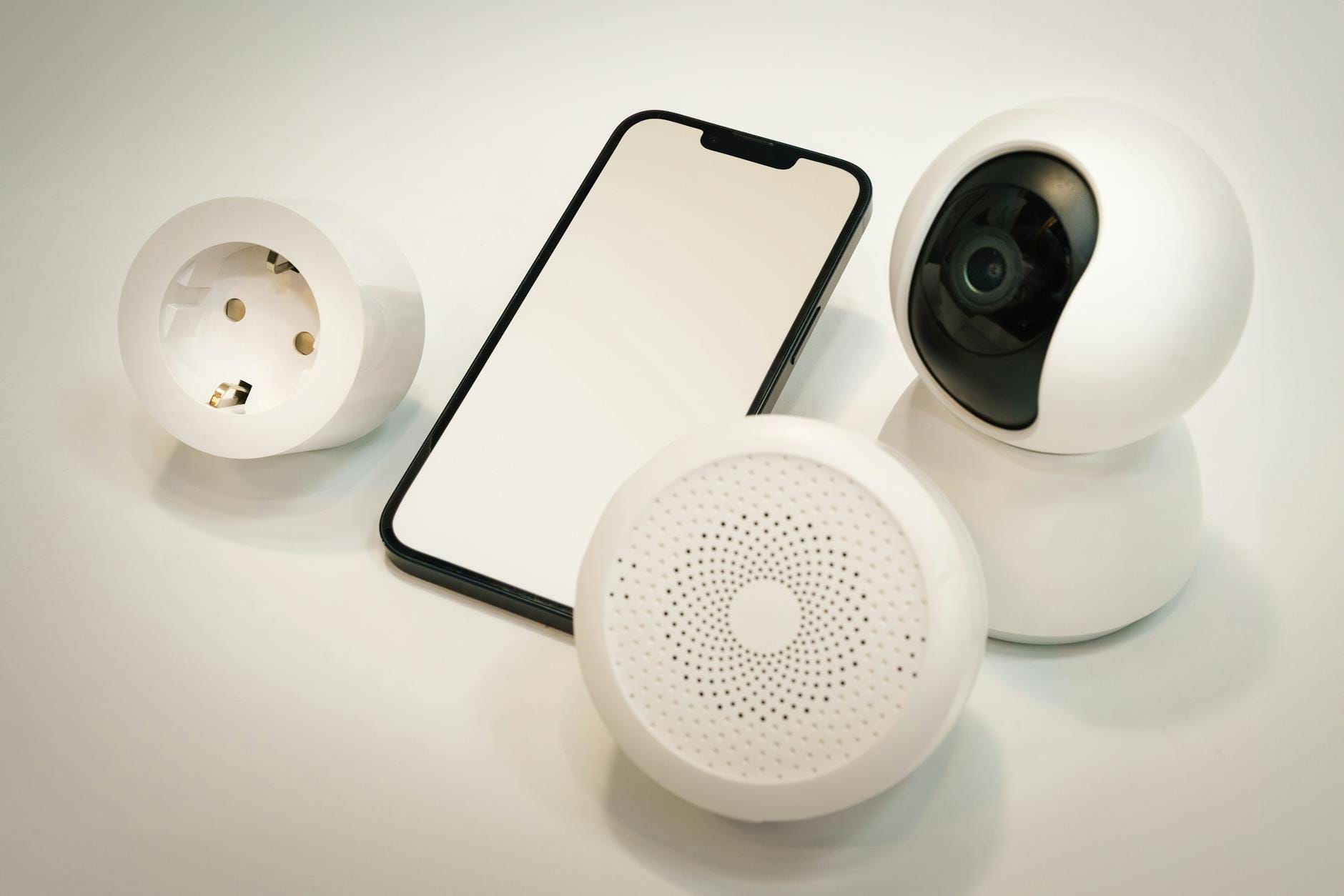
Your smart home is only as reliable as the network underneath it. Yet the most common question I see on Reddit's r/smarthome and r/homeautomation isn't about which smart bulb to buy—it's why devices keep going offline, why commands take forever to execute, and why that $200 thermostat keeps disconnecting at the worst possible moment.
I have 47 smart devices on my network. Light switches, sensors, cameras, door locks, robot vacuums, and a refrigerator that thinks it knows my grocery habits better than I do. Through years of trial, error, and more router replacements than I care to admit, I've learned something important: consumer routers aren't built for the Internet of Things. They're built for Netflix and Zoom calls.
If you're serious about smart home reliability, you need to think about your network differently. Here's what actually works in 2026.
The Problem: Why Standard Routers Fail Smart Homes
Most households upgrade their router every five to seven years. The one your ISP provided was probably designed for a dozen connections. Maybe twenty. But a modern smart home with sensors on every door, cameras covering every angle, and voice assistants in every room can easily push 50+ connected devices.
Here's what happens when you overload a basic router:
DHCP exhaustion. Every device needs an IP address. Cheap routers often have limited DHCP pools and short lease times. Devices reconnect, get new IPs, and suddenly your automations break because your smart home platform can't find the device at its expected address.
2.4GHz congestion. Most IoT devices still use 2.4GHz WiFi because it penetrates walls better. But that band is crowded—your neighbor's WiFi, microwaves, baby monitors, and Bluetooth all compete for the same spectrum. Without proper channel management, your smart switches become unresponsive.
Insufficient RAM. Every connection consumes router memory. Budget routers with 128MB of RAM start dropping connections when you push past 30 devices. Symptoms include intermittent disconnections, slow response times, and devices that show as "offline" even when they're powered on.
Mesh Systems vs. Traditional Routers: The Real Comparison
Mesh networking promised to solve WiFi dead zones. For streaming and browsing, it works well. For smart homes, the story gets complicated.
Mesh Systems: Pros and Cons
Eero Pro 7 (3-pack): $549
Eero consistently ranks among the most reliable mesh systems for smart homes. The tri-band design dedicates one 5GHz radio to backhaul communication between nodes, preserving the other radios for device connections. The Pro 7 adds WiFi 7 support and improved handling of high device counts.
What works: Thread border router built-in, simple app-based management, automatic updates that don't break things.
What frustrates: Limited advanced configuration. If you need custom DNS, VLANs, or detailed traffic monitoring, Eero's "it just works" philosophy becomes limiting. The subscription model for advanced security features ($9.99/month) also annoys power users.
ASUS ZenWiFi Pro ET12 (2-pack): $499
For those who want mesh convenience without giving up control, the ZenWiFi line offers enterprise-grade features in a consumer package. Each unit functions as a full router with AiProtection Pro (powered by Trend Micro), extensive QoS controls, and AiMesh compatibility with other ASUS routers.
What works: VLAN support for isolating IoT devices, comprehensive parental controls, USB ports for network storage, no subscription required for security features.
What frustrates: Setup complexity exceeds Eero or Nest. The mobile app is serviceable but the web interface reveals hundreds of options that can overwhelm beginners.
TP-Link Deco BE85 (3-pack): $999
The flagship Deco system pushes WiFi 7 speeds and claims support for 200+ devices. In practice, the quad-band design and 12-stream configuration handle dense device environments better than most competitors.
What works: Exceptional coverage (up to 9,600 sq ft with three units), HomeShield security features, Matter controller support built-in.
What frustrates: Premium pricing that's hard to justify unless you have a very large home or serious bandwidth needs. The Deco app pushes subscription features aggressively.
When to Skip Mesh Entirely
If your home is under 2,000 square feet and centrally wired for ethernet, a single high-quality router often outperforms mesh. The Ubiquiti UniFi Dream Router ($379) remains the gold standard for smart home enthusiasts who want professional-grade networking without the complexity of full UniFi deployments.
It handles 50+ device loads effortlessly, provides detailed traffic analytics, and includes a built-in UniFi Protect controller for those running security cameras. The downside? Setup requires more technical knowledge than consumer mesh systems.
The Smart Home Network Architecture That Actually Works
After testing configurations across multiple homes, here's the setup I recommend for anyone serious about smart home reliability:
Step 1: Separate Your Networks
Create at least two WiFi networks:
Primary network: Phones, laptops, tablets, streaming devices—things that need full internet access and benefit from 5GHz or 6GHz speeds.
IoT network: Smart home devices, cameras, sensors—things that don't need internet access to function (just local network access to your hub) and mostly use 2.4GHz anyway.
This isolation improves security (compromised cheap smart plugs can't attack your laptop) and reduces congestion on your primary network. Most modern routers support guest networks that can be repurposed for this, though VLAN-capable routers provide cleaner separation.
Step 2: Lock Down Your 2.4GHz Settings
IoT devices are notoriously picky about WiFi settings. Here's what works:
Mode: Set to 802.11n only (not ax/ac/n mixed). Most smart home devices use older WiFi chips that get confused when modern routers advertise advanced features they don't understand.
Channel width: Use 20MHz, not 40MHz. Wider channels provide higher throughput but increase interference. Smart devices need reliability, not speed.
Channel selection: Manually select channels 1, 6, or 11. These are the only non-overlapping 2.4GHz channels. Auto-selection algorithms often pick poorly, especially in dense neighborhoods.
Security: WPA2-Personal. Despite WPA3 being newer, many IoT devices still don't support it properly. The UniFi Dream Router's "WPA2/WPA3 transitional" mode works well—WPA3 for modern devices, WPA2 for legacy IoT.
Step 3: Extend with Purpose
If you have coverage gaps, add access points strategically—not just more mesh nodes. A single UniFi U6 Pro ($149) wired via ethernet provides better performance than any wireless mesh extension.
For areas where wiring isn't possible, the ASUS RP-AX56 ($129) functions as both a mesh node and a dedicated IoT extender with ethernet passthrough for hardwired devices like smart hubs.
Step 4: Plan for Thread and Matter
The networking landscape is shifting. Thread—a low-power mesh protocol designed specifically for smart homes—is becoming standard in new devices. Unlike WiFi, Thread creates a self-healing mesh where battery-powered sensors can route through powered devices like smart plugs and light bulbs.
To use Thread, you need a border router. Options include:
Apple TV 4K (3rd gen): $129 — The most reliable Thread border router for HomeKit users. Also functions as a HomeKit hub.
Google Nest Hub Max: $229 — Best for Google Home ecosystems. Second-gen Nest Hub and Nest Wifi Pro also include Thread.
Eero Pro 7 and newer: Built-in Thread border router for multi-platform households.
Home Assistant Yellow or SkyConnect: For open-source enthusiasts, these provide local Thread control without cloud dependencies.
My recommendation: Don't buy Thread-specific hardware yet unless you're starting fresh. Most new flagship routers and smart home hubs will include Thread support by mid-2026. If you're upgrading anyway, make it a consideration.
Specific Product Recommendations by Scenario
Best for Beginners: Eero Pro 7 (3-pack)
At $549, it's not cheap, but the combination of reliable mesh, built-in Thread support, and genuinely simple management makes it the safest choice for smart home newcomers. The automatic updates ensure security patches apply without your intervention—a crucial feature for network infrastructure.
Device limit: ~100 connected devices
Coverage: ~6,000 sq ft
Best for: Those who want networking to "just work" without learning about channels, bands, or DHCP leases.
Best for Power Users: UniFi Dream Router + U6 Pro AP
Total cost around $530 for router plus one access point. You get professional-grade features, detailed monitoring, VLAN support, and the satisfaction of knowing exactly what's happening on your network.
Device limit: ~150+ connected devices
Coverage: Depends on AP placement, typically 2,000-3,000 sq ft per U6 Pro
Best for: Home automation enthusiasts running Home Assistant, multiple VLANs, or advanced firewall rules.
Best Budget Option: TP-Link Deco X55 (3-pack)
At $249, the WiFi 6 Deco X55 delivers surprisingly good smart home performance. It lacks the advanced features of pricier options but handles 50+ device loads reliably and includes basic QoS controls.
Device limit: ~75 connected devices
Coverage: ~6,500 sq ft
Best for: Smart home beginners testing the waters before committing to premium networking hardware.
Best for Large Homes: Netgear Orbi 970 (3-pack)
The $1,699 price tag stings, but for homes over 4,000 square feet with 100+ devices, the quad-band WiFi 7 Orbi system is unmatched. The dedicated 5GHz backhaul leaves all other bands free for devices, eliminating the performance degradation common in cheaper mesh systems under heavy load.
Device limit: 200+ connected devices
Coverage: ~10,000 sq ft
Best for: Large smart homes with demanding bandwidth needs (4K security cameras, whole-home audio, gaming).
Red Flags: Networking Products to Avoid
Having tested dozens of routers and mesh systems, here are specific models that caused smart home headaches:
Budget ISP-provided gateways: The Arris, Technicolor, and Hitachi boxes most ISPs rent for $10-15/month typically crash under 30+ device loads. Buy your own modem and router. You'll save money long-term and get dramatically better performance.
Single-band extenders: Products like the TP-Link RE220 ($24) cut your bandwidth in half by repeating signals on the same channel. They also create separate network names that break device communication with hubs. Avoid.
Google Nest Wifi (original, not Pro): The 2019 Nest Wifi lacks dedicated backhaul and struggles with 40+ devices. The newer Nest Wifi Pro (WiFi 6E) is a completely different product and performs well.
Linksys Velop (lower-end models): The dual-band Velop units frequently drop 2.4GHz connections under load. Tri-band models perform better but still lag behind Eero and ASUS at similar price points.
Configuration Checklist for Smart Home Networks
Once you've chosen hardware, here's the configuration that prevents 90% of common smart home connectivity issues:
Router placement: Central, elevated, away from metal ducts and aquariums. WiFi signals travel outward and downward from the router.
DHCP lease time: Set to 7 days or longer. Short lease times (the 1-hour default on many routers) cause unnecessary reconnections.
Reserved IP addresses: Assign static IPs to your smart home hub, security cameras, and any device with flaky connectivity. This eliminates DHCP-related disconnections.
Band steering: Disable it. Band steering tries to push devices to 5GHz, but most IoT devices only support 2.4GHz and get confused by steering attempts.
Legacy device support: Enable 802.11b/g/n compatibility modes. That 2016 smart plug doesn't understand WiFi 6.
Multicast: Enable IGMP snooping if your router supports it. Smart home protocols like mDNS (used for device discovery) rely on multicast working properly.
The Bottom Line
Smart home networking isn't about buying the most expensive equipment—it's about buying the right equipment for your specific density and usage patterns. A $250 mesh system beats a $100 router every time when you're connecting 40+ devices. But a $1,700 mesh system is overkill for a 1,500 sq ft apartment.
The question I see most often on Reddit is "Do I really need to upgrade my router?" If you have more than 20 smart devices and experience random disconnections, slow response times, or devices that show offline in apps despite being powered on—yes. You do.
Start with the Eero Pro 7 if you want simplicity. Go UniFi if you want control. But whatever you choose, configure it properly. Even the best hardware performs poorly with default settings in a dense smart home environment.
Your lights should turn on when you ask. Your cameras should record when they detect motion. Your door should unlock when you approach. None of that happens reliably without a network built to handle it.